
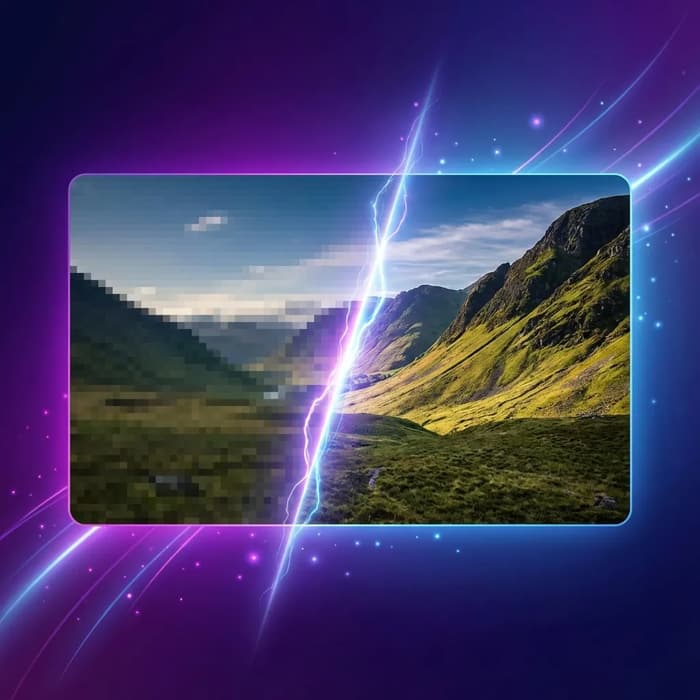
Before
After

AI Unblur Image for Photos You Still Need to Use
AI Unblur Image is made for a common problem: the photo is important, but it is a little too soft to publish. In real work, this happens all the time. A product shot is slightly blurry, a portrait has light motion blur, or a phone photo looks fine at thumbnail size but falls apart in detail view. AI Unblur Image helps recover edge definition, small textures, and local contrast so the image becomes usable again. The goal is not fake sharpness. The goal is a cleaner image that still looks like a real photo. AI Unblur Image works best on mild to moderate blur where source detail still exists. If the original file has almost no information, no tool can fully rebuild it. For best results, upload the original image file instead of a compressed screenshot. In short: AI Unblur Image is a practical fix when you need to keep the shot, keep your workflow moving, and avoid unnecessary reshoots.
How People Use AI Unblur Image in Daily Work
AI Unblur Image focuses on practical clarity recovery, with clear limits and predictable output.
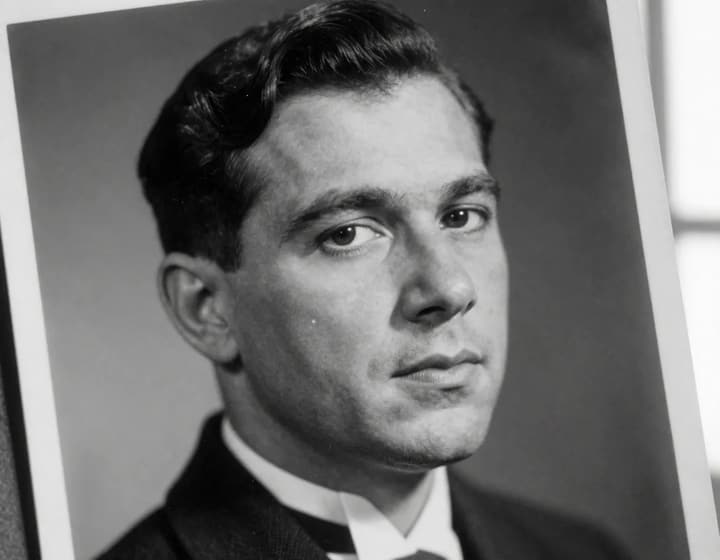
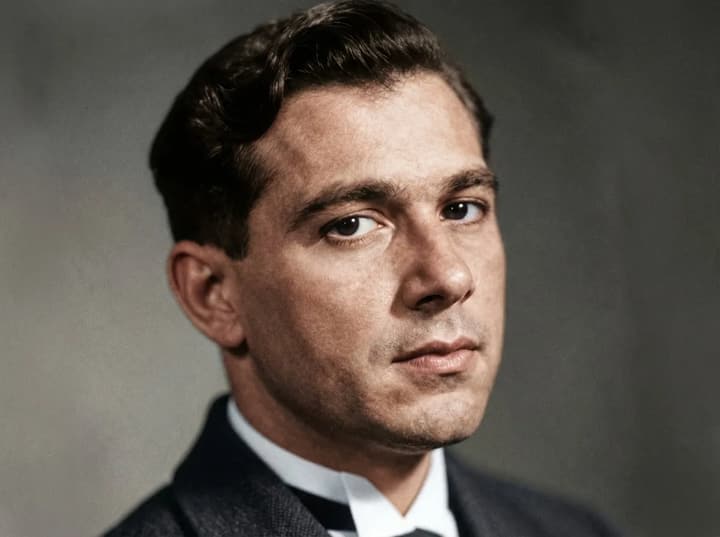
Portrait Cleanup for Social and Profile Photos
AI Unblur Image helps recover facial detail from soft portraits, especially around eyes, brows, hairline, and skin texture. This is useful when a photo is emotionally right but technically a bit soft. AI Unblur Image is tuned to keep skin natural, so the result does not look over-processed. If you manage personal branding, team profile photos, or creator content, AI Unblur Image can save shots that would otherwise be discarded.


Product Image Recovery for Ecommerce
A small amount of blur can lower trust in product listings. AI Unblur Image improves edge clarity, label readability, and material texture so products look cleaner and more reliable. Teams use AI Unblur Image to avoid re-shooting large batches and to keep catalog quality consistent. If your workflow includes marketplaces, PDP pages, and paid ads, AI Unblur Image helps keep image quality stable without slowing production.
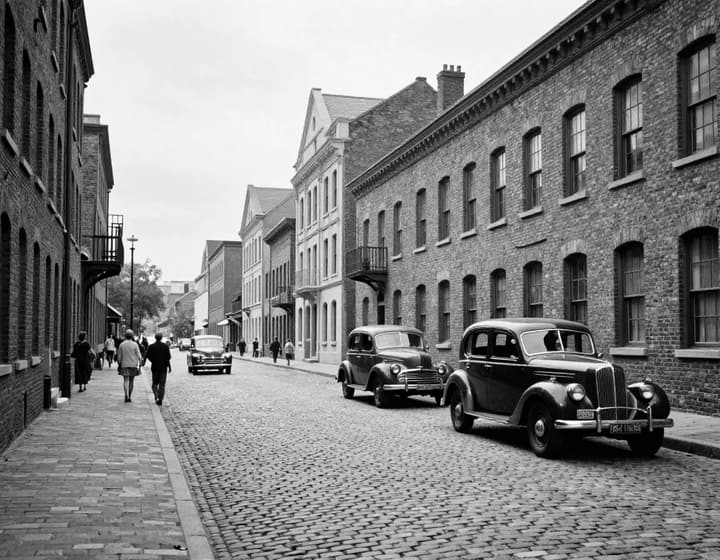
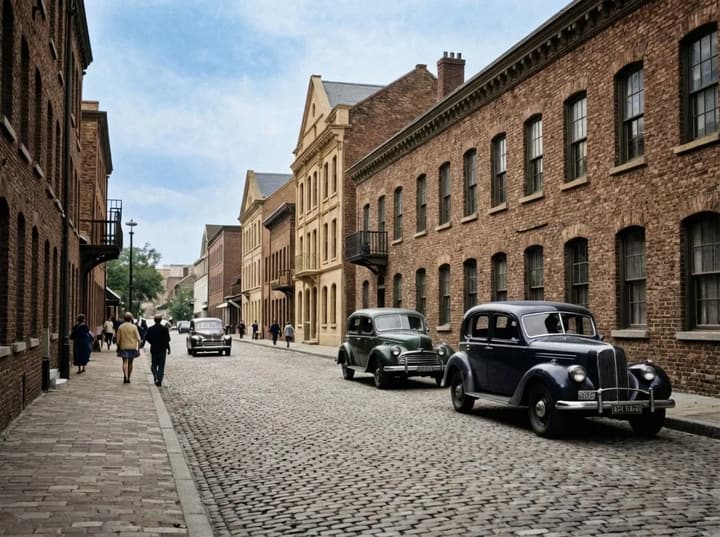
Handheld Motion Blur Fixes
Many phone photos fail because of small hand movement, not because of bad composition. AI Unblur Image reduces mild motion blur and restores structural detail so the image can be published. This is useful for travel photos, event coverage, and fast social posting where timing matters. AI Unblur Image cannot fully recover severely blurred frames, but it can significantly improve near-miss shots.
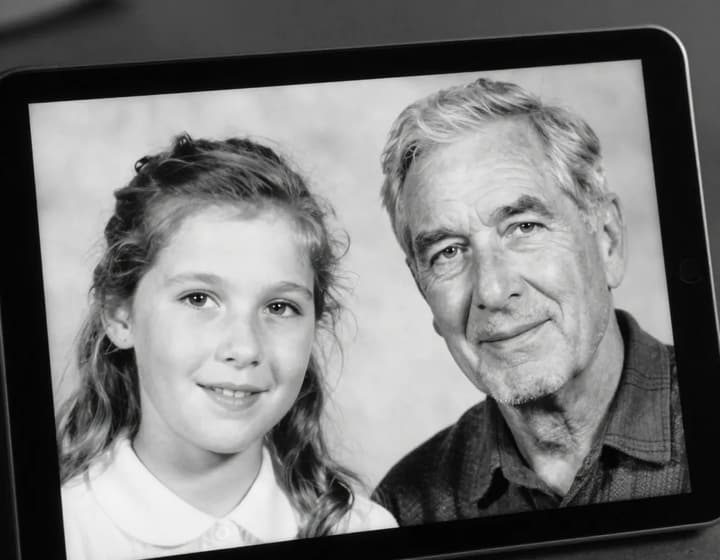
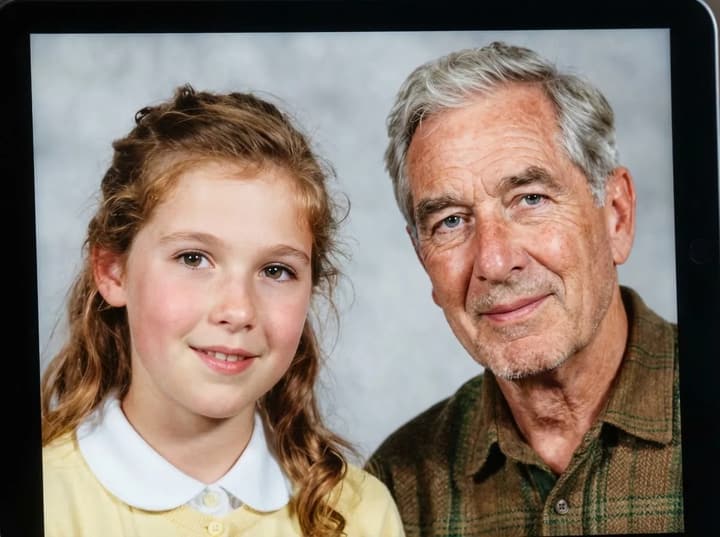
Natural Detail Without Harsh Artifacts
Some sharpening tools produce halos, crunchy edges, and noisy textures. AI Unblur Image is built to avoid that look. It improves clarity while keeping gradients, lighting, and texture transitions realistic. The output from AI Unblur Image is easier to reuse across web, mobile, and print because it looks balanced instead of aggressively processed.
How to Use AI Unblur Image in 3 Steps
Use this workflow when you need consistent output and quick turnaround.
1. Upload the original blurry file
Upload JPG, PNG, or WEBP up to 10MB. AI Unblur Image works best when the subject is still identifiable and the original file is not heavily compressed.
2. Add a practical instruction (optional)
Tell AI Unblur Image what matters most: for example, "improve face detail", "recover text", or "reduce handheld blur". Clear intent usually improves output consistency.
3. Generate, compare, and download
Run AI Unblur Image, check the before/after difference, and download the improved image once it matches your use case.
AI Unblur Image FAQ
Straight answers about what AI Unblur Image can and cannot do.
Fix Blur, Keep the Shot, Move On
Use AI Unblur Image when a photo is almost good enough and you need a reliable recovery step.